
How to Disable Battery Optimization and Allow Background Location for the Metron Android App
If you're using the Metron app on Android, it's important to disable battery optimization and allow background location access. Android’s power-saving features can restrict apps running in the background, which may cause workouts to stop, location tracking to fail, or the app to crash unexpectedly.
This guide will walk you through the exact steps to ensure Metron runs smoothly and reliably.
Why This Is Important
Android automatically limits background activity to save battery. While helpful for battery life, this can interfere with Metron’s ability to:
Track workouts accurately
Maintain location tracking
Prevent crashes during active sessions
Sync your data properly
To avoid interruptions, you must allow Metron to run without restrictions.
Part 1: Disable Battery Optimization for Metron
When you see the “Disable Power Saver Mode” screen in the Metron app, tap Settings. Then follow these steps:
Step-by-Step Instructions
Open your phone’s Settings
Tap Apps or Apps & notifications
Select See all apps
Scroll and tap Metron
Tap Battery
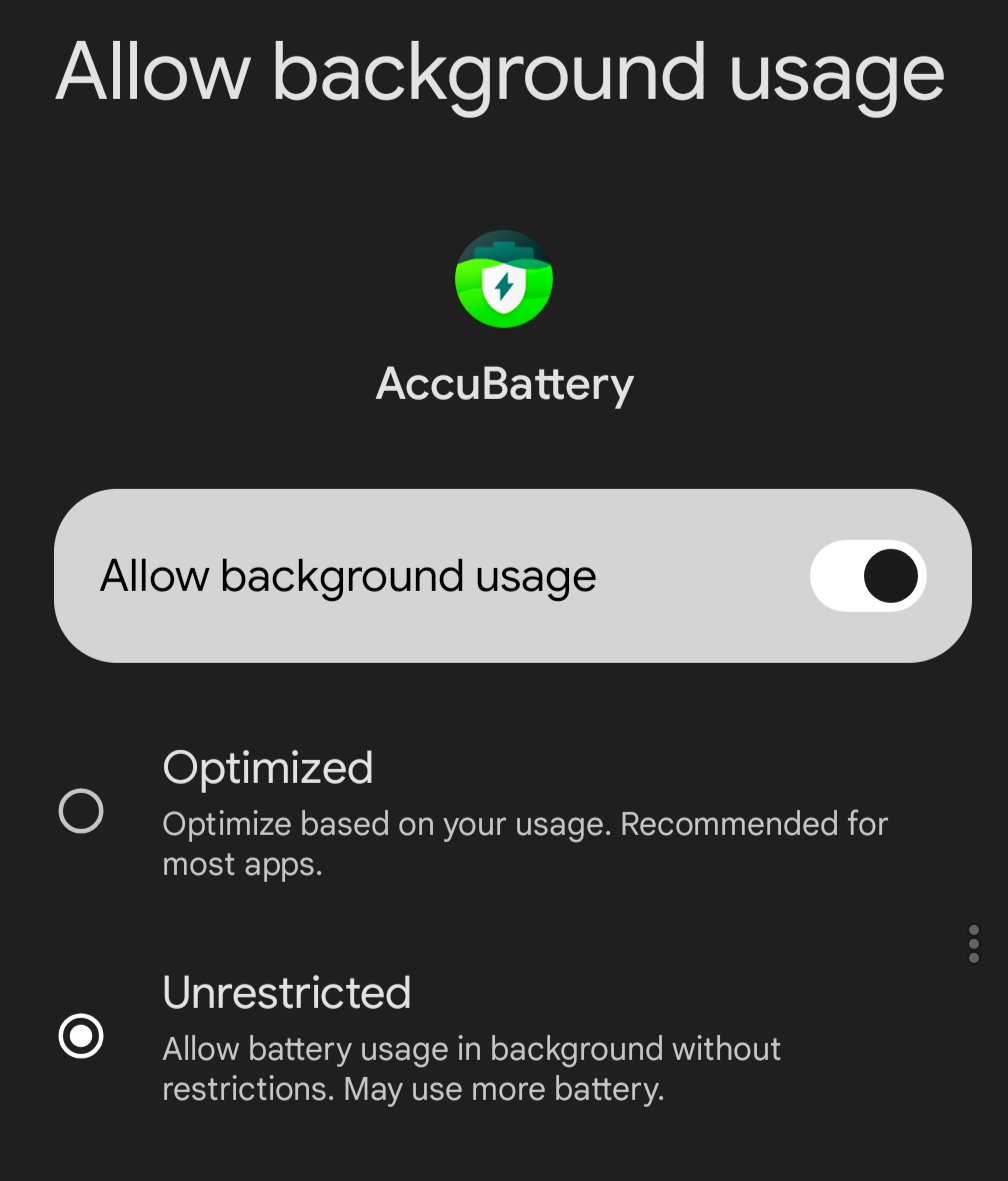
Select Allow background usage
Choose Unrestricted
This ensures Android will not stop Metron while it’s running in the background.
Part 2: Allow Background Location Permission
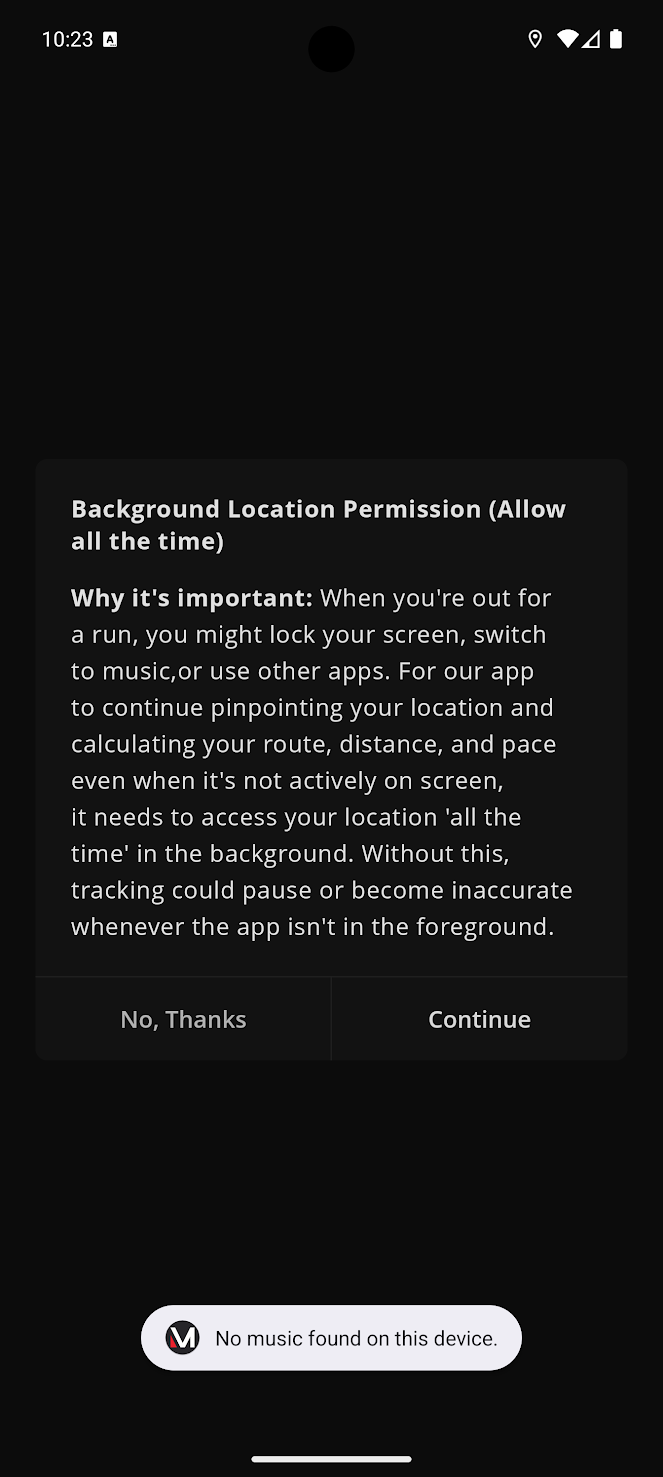
Metron requires background location access to properly track workouts.
Step-by-Step Instructions
Open Settings
Tap Apps
Tap Metron
Select Permissions
Tap Location
Select Allow all the time
This allows Metron to track your workout even when your screen is off or you're using another app.
Recommended Additional Setting (Optional but Helpful)
Some Android devices include additional battery-saving features. For best performance:
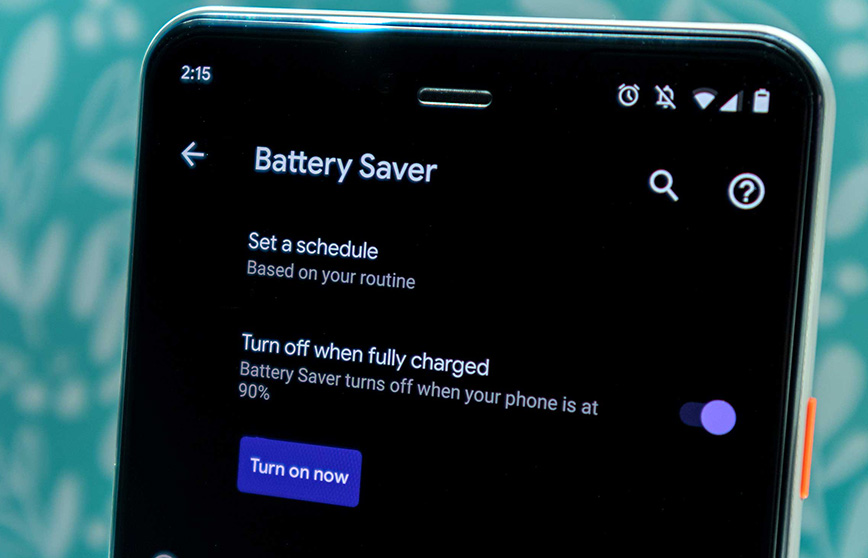
Disable Battery Saver Mode
Disable Adaptive Battery for Metron
Ensure Background activity is allowed
These settings help prevent interruptions.
How to Confirm Everything Is Set Correctly
After completing the steps:
Battery setting should show: Unrestricted
Location permission should show: Allow all the time
Metron should run without crashes or interruptions
You're All Set
Once these settings are enabled, Metron will be able to run reliably in the background, ensuring your workouts are tracked accurately without crashes or interruptions.
If you continue to experience issues, try restarting your phone after applying these settings.
Screenshots: